Dongguan XSD Cable
Technology Co., Ltd.
- All
- Product Name
- Product Keyword
- Product Model
- Product Summary
- Product Description
- Multi Field Search
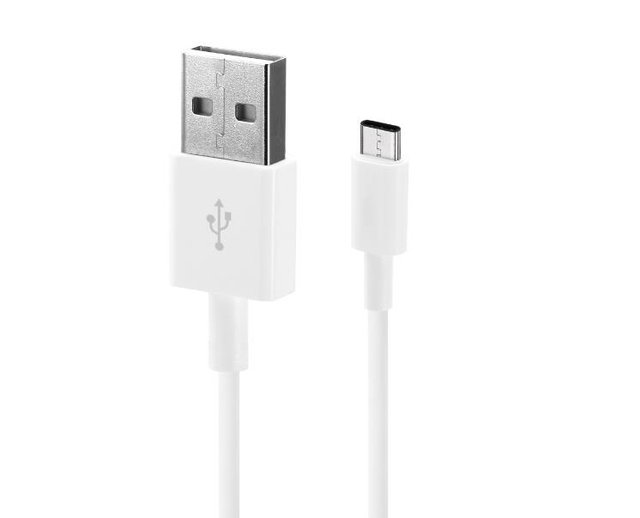
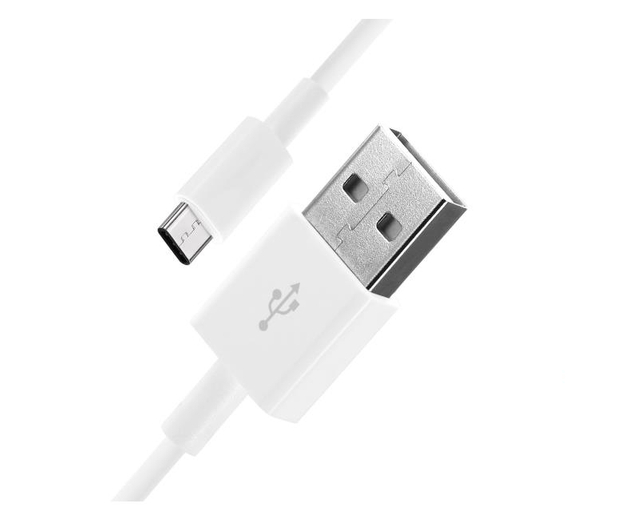
In the rapidly evolving world of technology, USB-C cables have become a ubiquitous tool for connecting a myriad of devices. From smartphones to laptops, and from external hard drives to gaming consoles, the USB-C cable is a versatile accessory that promises convenience and efficiency. However, not all USB-C cables are created equal, especially when it comes to data transfer capabilities. This article delves into the nuances of USB-C cables, helping you discern whether a USB-C cable can transfer data, and how to identify if it’s a USB 3.0 cable.
Are All USB-C Cables Capable of Data Transfer?
The simple answer is no, not all USB-C cables are capable of data transfer. While USB-C is a universal standard for connectors, the capabilities of the cable can vary significantly based on its internal configuration and the protocols it supports. Here’s a detailed look at the factors that determine a USB-C cable’s data transfer capabilities:
USB-C cables come in various specifications, each designed to support different data transfer speeds. The most common specifications include:
USB 2.0: These cables are capable of data transfer speeds up to 480 Mbps. They are often used for charging and basic data transfer tasks.
USB 3.0: Also known as USB 3.1 Gen 1, these cables support data transfer speeds up to 5 Gbps. They are suitable for faster data transfer and are commonly used for connecting external hard drives and other high-speed devices.
USB 3.1 Gen 2: These cables offer even faster data transfer speeds of up to 10 Gbps. They are ideal for demanding applications that require high-speed data transfer.
USB 3.2: The latest specification, USB 3.2, supports data transfer speeds up to 20 Gbps, providing unparalleled performance for advanced users.
The internal construction of a USB-C cable plays a crucial role in its data transfer capabilities. High-quality cables typically use premium materials and advanced manufacturing techniques to ensure optimal performance. Key aspects of cable construction include:
Conductor Material: High-quality cables often use oxygen-free copper (OFC) or silver-plated copper conductors, which offer better conductivity and faster data transfer speeds.
Shielding: Proper shielding helps to minimize interference and ensure stable data transfer. Look for cables with foil and braid shielding for best results.
Connector Quality: The quality of the USB-C connectors also affects data transfer performance. Premium connectors with gold-plating can provide better connectivity and durability.
Opting for cables from reputable brands and those that are USB-IF certified can significantly increase the likelihood of getting a cable capable of data transfer. USB-IF certification ensures that the cable meets the stringent standards set by the USB Implementers Forum, guaranteeing compatibility and performance.
Carefully read the packaging and product description when purchasing a USB-C cable. Manufacturers often specify the data transfer capabilities of the cable, including the supported USB version and maximum data transfer speed. Look for terms like “USB 3.0,” “USB 3.1,” or “Data Transfer” to ensure the cable meets your needs.
Some USB-C cables have visual indicators that can help you determine their data transfer capabilities. For example:
Color Coding: Some manufacturers use color coding to distinguish between different types of cables. For instance, blue connectors often indicate USB 3.0 or higher compatibility.
Logo Markings: Look for logos or markings on the cable or connectors, such as the USB SuperSpeed logo, which indicates support for USB 3.0 or higher.
If you already have a USB-C cable and are unsure of its data transfer capabilities, you can perform a simple test:
Connect the Cable: Connect the USB-C cable to your device and a compatible external device, such as an external hard drive or a smartphone.
Transfer a Large File: Try transferring a large file between the devices and monitor the transfer speed. If the speed is significantly higher than what you would expect from a USB 2.0 cable (e.g., close to 5 Gbps for USB 3.0), then the cable is likely capable of high-speed data transfer.
Use Benchmarking Tools: You can also use benchmarking tools available online to measure the data transfer speed accurately.
How Do I Know If a USB-C Cable is 3.0?
Identifying whether a USB-C cable is USB 3.0 can be crucial for ensuring optimal data transfer speeds. Here are some effective methods to determine if a USB-C cable is 3.0:
The most straightforward way to determine if a USB-C cable is 3.0 is to check the packaging and product description. Manufacturers typically list the USB specification supported by the cable. Look for terms like “USB 3.0,” “USB 3.1 Gen 1,” or “SuperSpeed USB” which indicate that the cable is capable of USB 3.0 data transfer speeds.
USB 3.0 cables often have distinct visual cues that can help you identify them:
Color Coding: USB 3.0 cables may have blue-colored connectors or ports, which is a common industry standard to distinguish them from USB 2.0 cables.
Logo Markings: The USB SuperSpeed logo (a stylized ‘S’ with lightning bolts) is a clear indicator that the cable supports USB 3.0 speeds.
Internal Color: If you have a transparent cable or can see the internal wiring, USB 3.0 cables typically have blue-colored wires, whereas USB 2.0 cables have white or green wires.
Cables that are certified by the USB Implementers Forum (USB-IF) are guaranteed to meet the standards for the specified USB version. Look for the USB-IF certification logo on the cable or packaging, which ensures the cable is USB 3.0 compliant.
USB 3.0 cables have specific technical specifications that set them apart from other versions:
Data Transfer Speed: USB 3.0 cables support data transfer speeds up to 5 Gbps.
Power and Charging: USB 3.0 cables can deliver up to 900 mA of power, which is higher than the 500 mA provided by USB 2.0 cables.
Backward Compatibility: While USB 3.0 cables are backward compatible with USB 2.0 devices, they will operate at the lower speed of the USB 2.0 standard when connected to such devices.
If you have access to the cable and want to verify its capabilities, you can perform a speed test:
Connect the Devices: Use the USB-C cable to connect two devices that support USB 3.0, such as a laptop and an external hard drive.
Transfer a Large File: Copy a large file (e.g., a movie or a large dataset) from one device to the other and measure the transfer speed. USB 3.0 speeds should be significantly faster than USB 2.0, with transfer rates close to 5 Gbps.
Use Benchmarking Software: For a more accurate assessment, use benchmarking software that can measure the read and write speeds of the connected devices.
If you’re still unsure, you can consult the manufacturer’s website or customer support for detailed information about the cable’s specifications. Reputable manufacturers provide comprehensive product details and support to help customers understand their products better.
USB-C cables come in different types, and understanding them can help you identify a USB 3.0 cable:
USB-C to USB-C: These cables can support various USB versions, including USB 3.0, depending on their construction and specifications.
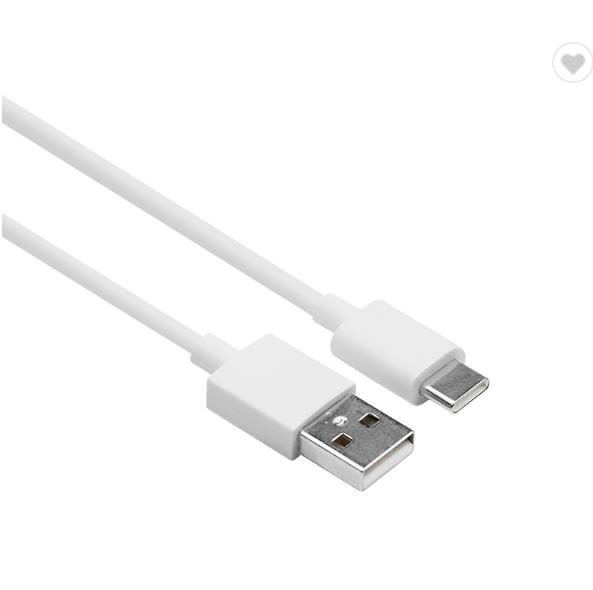
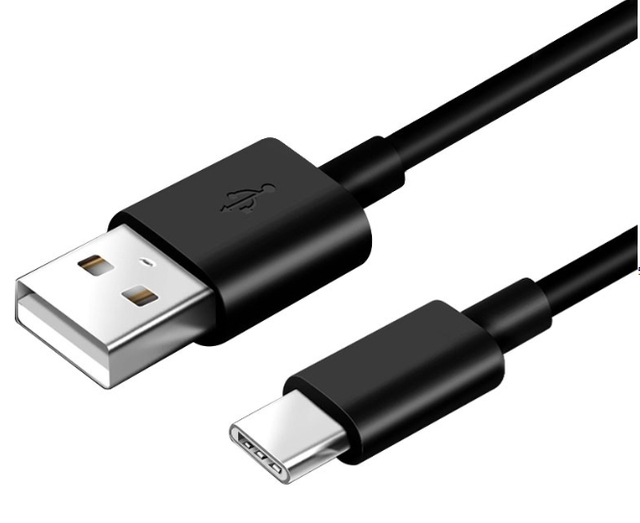
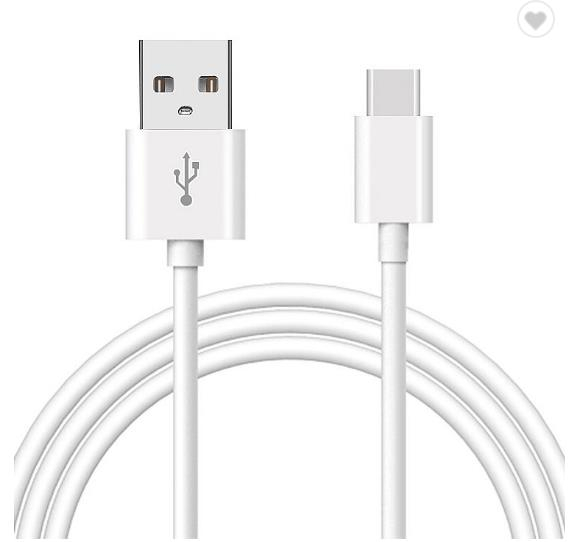
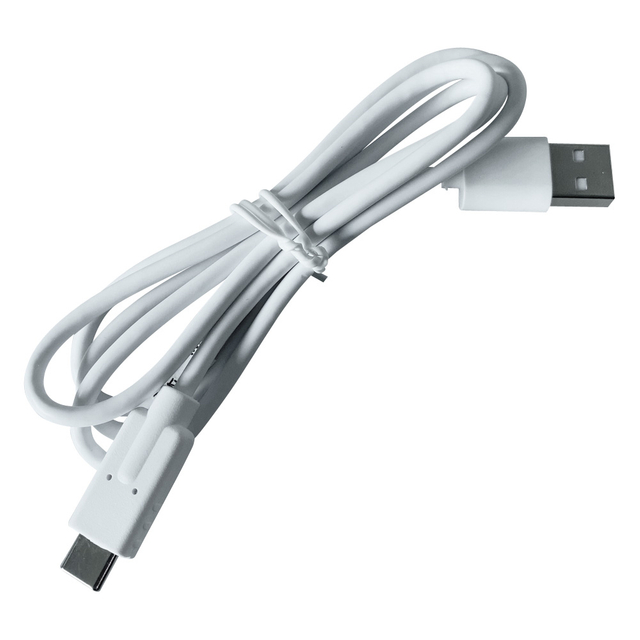
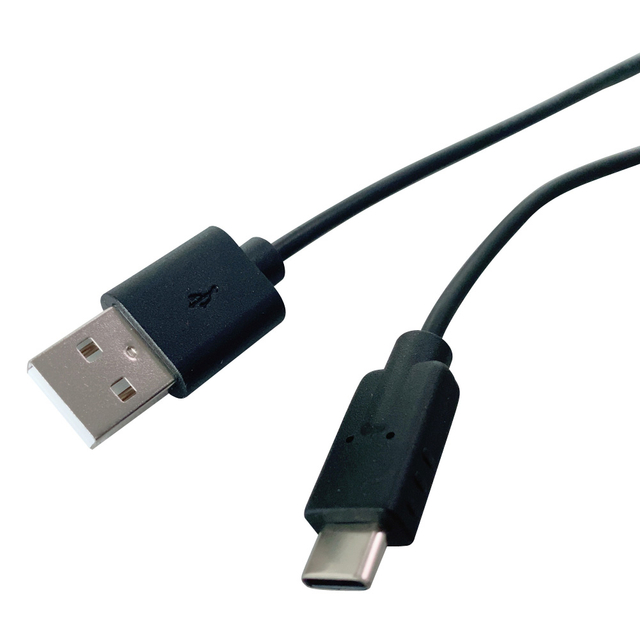
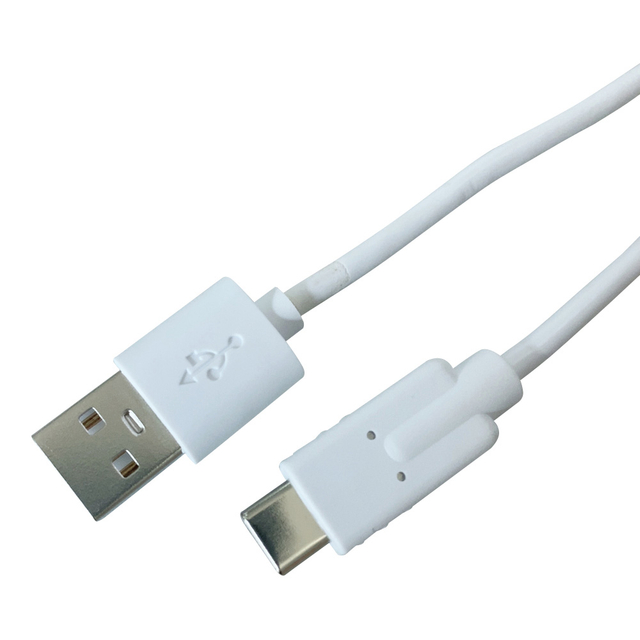
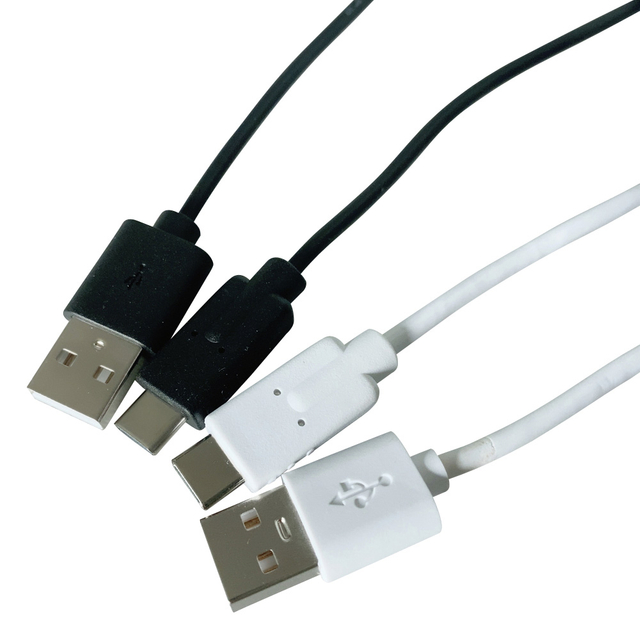
USB-C to USB-A: These cables can also support USB 3.0, but you need to ensure that the USB-A end is blue, indicating USB 3.0 compatibility.
Some USB-C cables come with additional features that are typically associated with USB 3.0 or higher specifications:
Power Delivery (PD): USB-C cables that support Power Delivery often support USB 3.0 or higher data transfer speeds.
Alt Mode: Cables that support USB Alt Mode for video output are usually USB 3.0 or higher.
Before purchasing a USB-C cable, read reviews and user feedback to see if other customers have confirmed the cable’s USB 3.0 capabilities. User experiences can provide valuable insights into the actual performance of the cable.
If you have a device that you know is USB 3.0 compatible, test the cable with that device. If the device recognizes the cable and allows for high-speed data transfer, it’s likely a USB 3.0 cable.
FAQs:
1. What types of USB data cables are available on this page?
We offer a range of USB‑A, USB‑B, USB‑C, Micro‑USB, Mini‑USB, and custom USB data cable assemblies, suitable for data transfer, charging, and connectivity in consumer devices, industrial equipment, and embedded systems.
2. How do I choose the right USB cable type for my device?
Select based on the connector type your device requires (USB‑A, USB‑C, Micro, etc.), the data transfer speed needed, and whether power delivery or fast charging is required. If unsure, provide your device model for precise recommendations.
3. What data transfer speeds can these USB cables support?
Our USB data cables support a range of transfer speeds depending on the standard:
USB 2.0 up to 480 Mbps
USB 3.0/3.1/3.2 up to 5 Gbps or higher
Specify your speed requirement when ordering to ensure compatibility.
4. Are custom lengths and connector combinations available?
Yes. We offer custom lengths, color coding, connector combinations, and overmold options so your USB cable fits your exact design, installation space, or branding needs.
5. Can these USB cables support charging as well as data transmission?
Yes. Many USB data cables support both data transfer and device charging. If fast charging or power delivery is required, specify the current rating (e.g., 2 A, 3 A, PD support) when inquiring.
6. Are shielded USB cables offered for noise‑free data transmission?
Yes. We provide shielded USB data cables to reduce electromagnetic interference (EMI), improving signal integrity in noisy environments—especially important for industrial or high‑speed data applications.
7. Can these USB cables be used in automotive or industrial environments?
Standard USB data cables are primarily designed for consumer electronics. For automotive or industrial use, we can provide ruggedized or reinforced versions that withstand vibration, heat, and harsher environmental conditions.
8. What quality checks are done before shipping USB cables?
Each USB data cable undergoes continuity and signal integrity testing to ensure proper data transfer and connection reliability, reducing the risk of defects or returns.